Click  to open the My Queries window.
Click  to open the Recent Queries window.
This topic shows you how to view the underlying SQL statements generated for any saved query (public and private). It also shows you how to view the SQL statements for any query you plan to run or have run but not yet saved. Note that SQL views are view-only, which means you can view the statements but you cannot modify them.
Viewing SQL Statements for Saved Queries
Viewing SQL Statements for Designed But Not Saved Queries
The My Queries list shows both the queries created and saved by the logged-in user and the queries created and made public by other authorized users. The Recent Queries list shows the last 12 queries created by the logged-in user only.
Locate the query. Do one of the following:
Click to open the My Queries window.
Click to open the Recent Queries window.
Select the query whose SQL statements you want to view. Then, click  .
.
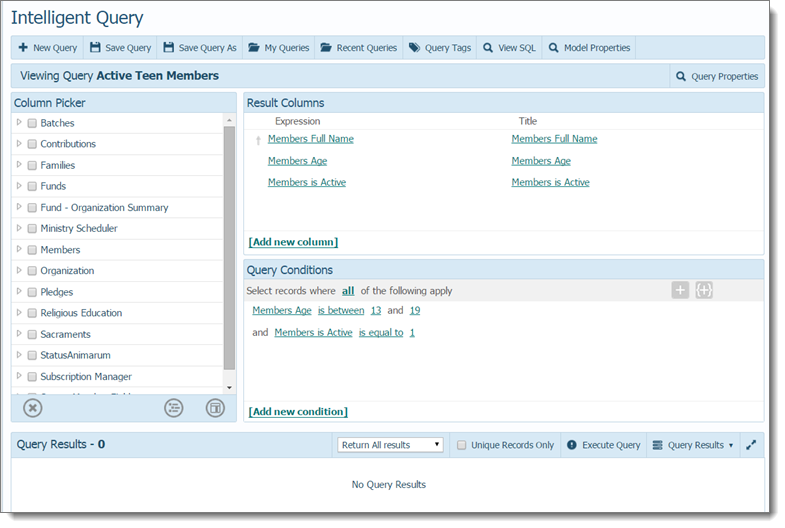
The elements of the query (selected columns, applied conditions, and sort operations) are displayed in panels on the Intelligent Query page. For example:
 .
.The View SQL window opens to display the underlying SQL statements for the selected query. For example:
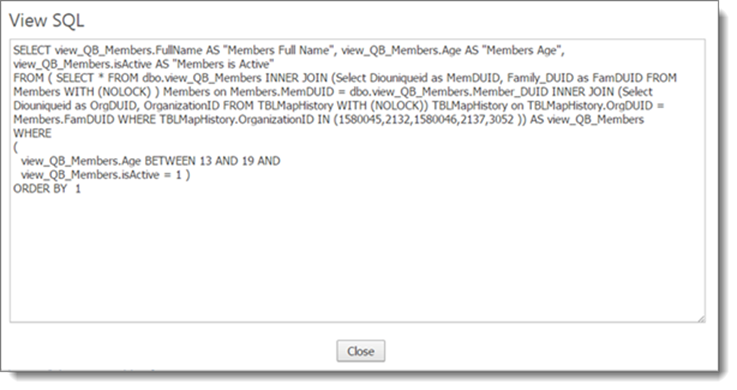
The SQL statements are view-only, which means you can view but not modify them.
 to exit the window.
Design the query by selecting columns and applying the desired conditions and sort operations.
As you design the query, the elements are added to the respective panels on the Intelligent Query page.
To view the underlying SQL statements for the query, click .
The View SQL window opens to let you see the SQL statements.