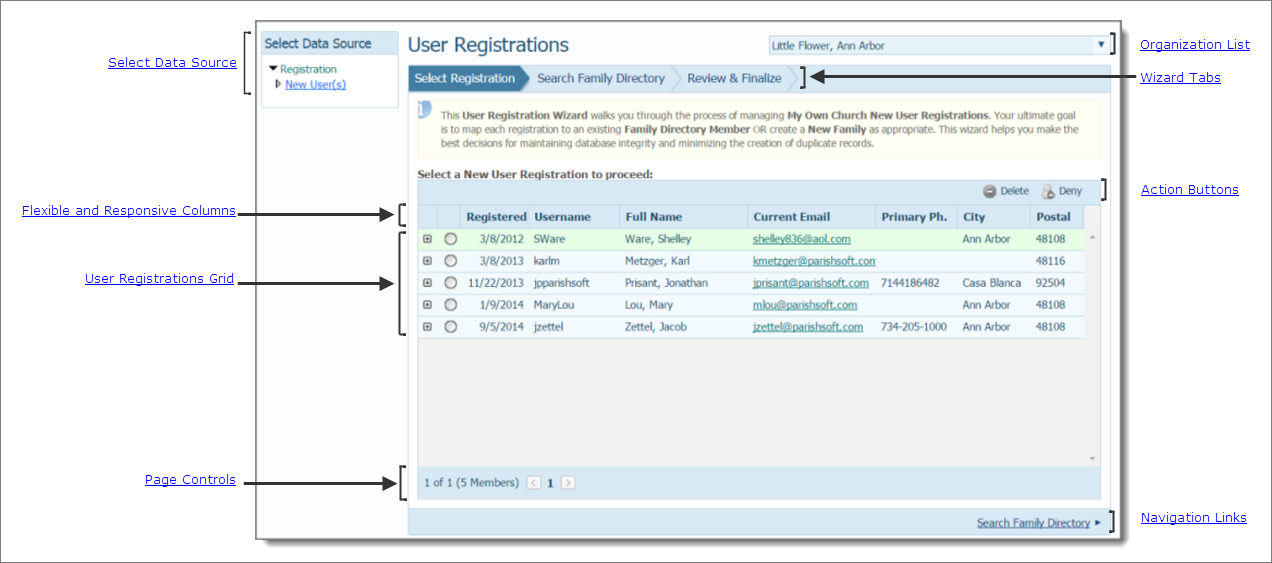
Overview of the User Registrations Page
Flexible and Responsive Columns
As an administrator, one of your key responsibilities is to periodically review pending registration requests from new users. All registration requests are put on hold (not committed to the database) until you approve the request. The User Registrations page lets you view all pending new user registration requests and provides information to enable you take action to approve or deny those requests.
The illustration below identifies the main areas on this page. Place your mouse pointer over a link (without clicking) to view a general description of an area. Click the link to jump to the section in this Help topic that provides more detailed information.
The organization associated with your ParishSOFT login credentials automatically appears in the Organization list, located in the upper-right corner. If you manage multiple organizations, select the organization whose new user registration requests you want to view. Or, select All Organizations to view requests for all of the organizations you manage.
 If you select an organization for which you do not have viewing rights, a message is displayed to inform you that you are not authorized to access the organization. If you believe you should have access to an organization, contact your System Administrator for assistance.
The Select Data Source section, located on the left, contains the New Users link. Clicking the link shows the names of users with pending registration requests.
The User Registrations Wizard guides you through the process of reviewing and taking action on new user registration requests. The sequence of steps to complete the process is presented on three tabs:
Select Registration
Search Family Directory
Review & Finalize
For instructions on reviewing and processing pending new registration requests, see How to Resolve Pending New User Registration Requests.
The User Registrations grid, located on the right, lists all of the pending registration requests that require administrative action to deny or approve.
 deletes the new user registration request.
 denies the new user's registration.
The User Registrations grid has flexible and responsive columns that you can change as needed to suit your preference for viewing information. The columns have these features:
● Sortable: click a column header to sort entries in the grid based on the information in the column. For details, go to Sorting_the_Display_of_Records.
● Resizable: grab the border between two columns to increase or decrease the width of one of them. For details, go to Changing_Column_Widths.
● Moveable: drag and drop columns in the grid to suit your preference for viewing information. For details, go to Changing_Column_Widths and Rearranging_the_Columns.
 : click the option button to select the new user registration record you want to work with. To deselect the record, click the button again.
 (Expand): click to expand the entry and view the user's personal information, including the address and phone number. Reviewing this information can help you make a decision about whether the prospective user already has a record in the system.
 (Collapse): click to collapse an entry and hide the user's personal information.
If the grid contains multiple pages, the number of pages is displayed below the grid. Select a page to go directly to that page in the grid. Alternatively, click  to page back or click
  to page forward through the pages. The number of records in the entire grid is shown in parentheses.
Click these navigation links at the bottom of the page to advance through the steps in the process or to return to a previous step:
● Select Registration: click this link to go to the Select Registration tab.
● Search Family Directory: click this link to go to the Search Family Directory tab.
● Review & Finalize: click this link to go to the Review & Finalize tab.
For details, go to How to Resolve Pending New User Registration Requests.
How to Approve or Deny Pending New User Registration Requests
How to Approve or Deny Change Requests to a Family or Member Record