Click  , and then select User Registrations.
Prospective users of ParishSOFT Family Suite must first register to become authorized users of the system. Users can log in only after an administrator approves the registration request and activates the account. This topic shows the administrator how to review and take action on a registration requests from prospective users.
Reviewing a New User Registration Request
Deleting a New User Registration Request
Denying a New User Registration Request
Adding a New Family Record to Your Database
Finalizing a New User Registration Request
Click , and then select User Registrations.
The User Registrations page is displayed. For example:
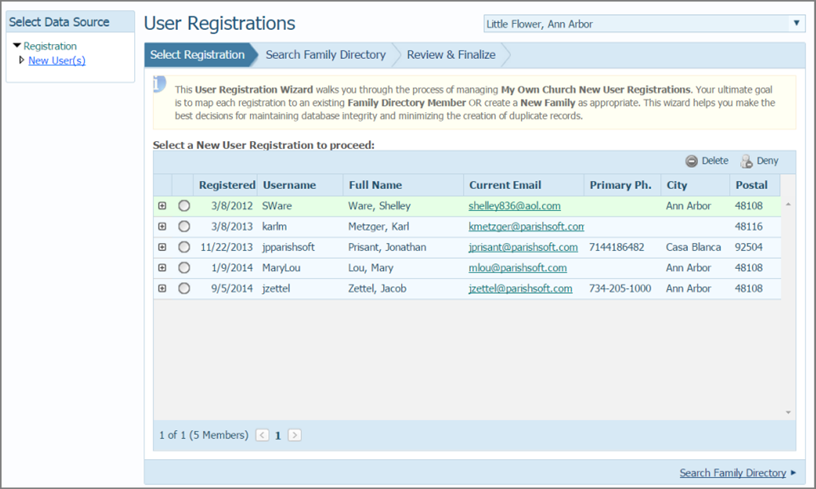
The tabbed interface guides you through the process of reviewing and finalizing new user registration requests. The process consists of three main steps, indicated by the tabs located at the top of the right panel. By following the steps in the order given, you can make decisions to accurately process registrations without creating duplicate records. In the final step, you will either add the individual as a new user to the system or associate the individual with an existing record in the database.
Starting on the Select Registration tab, select the name of the individual whose registration request you want to review.
The columns in the grid show information provided by the prospective user.
Review the details of the request. If desired, click  to expand the entry to view additional information. Reviewing this information can help you make a decision about whether the individual already has a record in the system.
Do one of the following:
If you believe the registration request should be removed, you can delete it. For instructions, go to Deleting_a_Registration_Request.
If you have reason to reject the registration request, you deny it. For instructions, go to Denying_a_Registration_Request.
If you need more information to make a decision about the registration request, you can search the database to find out if the individual already has a record in the system. For instructions, go to Searching_Family_Directory.
 This procedure assumes that you completed 1 - 4 under Reviewing_a_Registration_Request.
Click  .
.
Details of the registration you are about to delete are displayed to give you a another opportunity to review the request. You are prompted to confirm the deletion.
To delete, complete the following:
(optional but recommended) Document the reason for your decision in the Review Notes field.
Click  .
.
The system deletes the request. Note that the individual receives no email notifying him or her of the deletion.
If you have another new user registration request to review, repeat Steps 2 - 4 under Reviewing_a_Registration_Request.
This procedure assumes that you completed 1 - 4 under Reviewing_a_Registration_Request.
Click  .
.
Details of the registration you are about to deny are displayed to give you another opportunity to review the request . You are prompted to confirm the user's registration request.
To deny the request, complete the following:
(optional but recommended) Document the reason for your decision in the Review Notes field.
Click  .
.
The system records the request and the action taken (denied) in the Suspense History log. The system sends an email to inform the individual that the request was denied.
If you have another new user registration request to review, repeat Steps 2 - 4 under Reviewing_a_Registration_Request.
This procedure assumes that you completed 1 - 4 under Reviewing_a_Registration_Request.
Click the Search Family Directory link in the lower right corner of the page.
The system searches your Family Directory database looking for potential matching records, and then does the following:
If the email address in the new user registration request matches emails addresses of existing members in the database, the system displays each existing member's information at the bottom of the right panel.
If no matches are found, the system displays this message: No Records.
Do one of the following:
If no matches are found, you need to search Family Directory to ensure no existing member record exists. Proceed to Step 4 to begin the search process.
If none of the matches is correct, you need to search Family Directory to ensure no existing member record exists. Proceed to Step 4 to begin the search process.
If a match is correct, select the matching record. Then, go to Finalizing_a_New_User_Registration_Request to complete the registration process.
Search your database to determine if the prospective user already has an account. Complete these steps to make that determination:
In Action dropdown list, select the Find Existing Family Member in Family Directory option. Then, click  .
.
The system searches, and then does the following:
If no matches are found, the system displays this message: No Records.
If potential matches are found, it displays the matching records in the grid.
Do the following:
If the system finds no records, you can assume that no matching record exists. You can proceed to add the family record to your database. For instructions, go to Adding_a_New_Family_Record_to_Your_Database
If the system displays potential matches, but none is correct, you can assume that no matching record exists. You can proceed to add the family record to your database. For instructions, go to Adding_a_New_Family_Record_to_Your_Database.
If a match is correct, select it. Then, go to Finalizing_a_New_User_Registration_Request to complete the registration process.
These instructions assume that you completed Steps 1 -4 under Searching_Family_Directory and that, as a result of the Family Directory search, you decided that you need to add a new family record.
In Action dropdown list, select the Add New Family option.
Click the Review & Add New Family link in the lower right.
The system displays the selected new user's record. Fields in the record are automatically filled based on information the user supplied in the registration request.
Complete the remaining fields. A red asterisk (*) indicates required information.
If desired, enter notes in the Review Notes field.
Click  to approve the new user registration.
The system adds a new family record to the database. The newly added record appears in the Family List grid in Family Directory.
Be careful about associating a new user registration with an existing member record that has no email address or a different email address.
Click the Review & Finalize link in the lower right.
The Finalize Record grid is displayed. This grid shows the data in the existing member record and the newly submitted registration information. If there is a discrepancy, the system displays this message: 
If necessary, select the information you want to keep. Then, click  .
.
The system approves the registration and updates the member's record with any changes.
About the New User Registrations Page