About the User Settings Page
If
you want to make ParishSOFT Family Suite fit your style of working, you
can configure certain settings that make the modules behave and display
information in the way you want them to. This topic describes which settings
you can customize and where they are located.
Overview
of the User Settings Page
Start
Pages
Member
Tab Display
Overview of the User
Settings Page
The User Settings page
contains options you can configure to customize ParishSOFT Family Suite.
 Currently, you can change the Start page (Home
page) for each module that you use and change the default display order
of member name tabs in Member Details. In the future, other options will
be added to enable you to set your preferences for workflow appearance
and the behavior of various modules in the Suite.
Currently, you can change the Start page (Home
page) for each module that you use and change the default display order
of member name tabs in Member Details. In the future, other options will
be added to enable you to set your preferences for workflow appearance
and the behavior of various modules in the Suite.
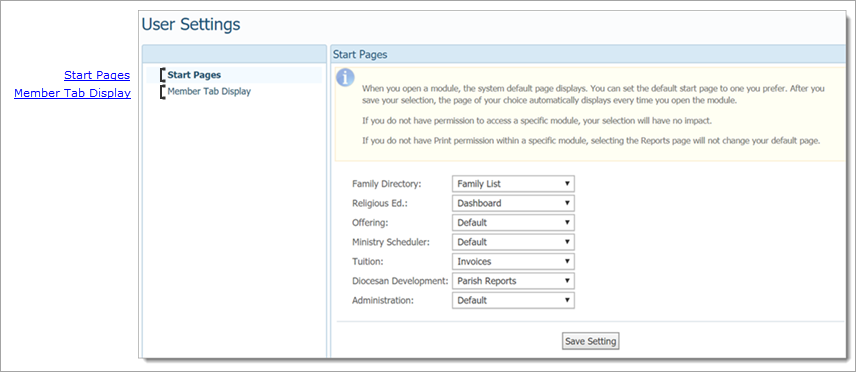
In the illustration below, elements of the User
Settings page are identified in the callout links. Place your mouse
pointer over a link (without clicking) to view a brief description of
an element. For a more detailed description, click the callout link to
jump to an explanation later in this topic.
Start Pages
When you first open a module, it
displays the default Start page. For example, when you first open Family
Directory, the default Start page, Family
List, is
displayed.
Start
Pages
is a User Settings option that lets you assign a Start
page to each Family Suite module you use. Selecting Start
Pages
displays a list of modules in the right panel for which you can choose
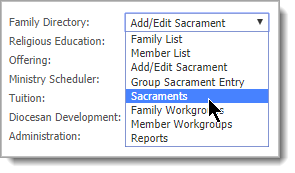
a Start page. Each
module has a dropdown list containing the pages you can assign. Simply
open the list and select the desired page:
Your organization
must be licensed to use a module and you must have the required permissions
to access the page you select. Otherwise, your selection has no effect.
After you save your selection, the
page you selected opens first the next time you open the module. Note
that the page you choose is unique to you and your login.
At any time, you can switch back
to the default Start page or change the current Start page to a different
page by selecting and saving it.
For
instructions on selecting a module's Start page, go to How
to Change the Start Page.
Member
Tab Display
Member Tab Display
is
a User Settings
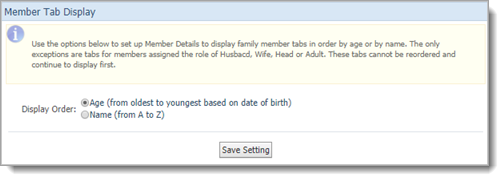
option that lets you configure the order in which the name tabs
of family members are displayed in Member Details.
Selecting
Member Tab Display displays two settings:
● Age (from
oldest to youngest based on date of birth)
Displays the name tabs of family
members—except those assigned the role of Head, Husband, or Wife—in descending
order (from oldest to youngest based on date of birth) by age.
● Name (from
A to Z)
The default. Displays the name tabs
of family members—except those assigned the role of Head, Husband, or
Wife—in alphabetic order by name.
For instructions on setting the tab order, go to How
to Change the Display Order of the Name Tabs in Member Details.
Related Topics
How to
Change the Start Page
How
to Change the Display Order of the Name Tabs in Member Details
<Back to top>