Click  to display the Batch
Management page.
to display the Batch
Management page.
If you manage several organizations, select the desired organization from the Organization list.
If a payment or contribution is posted incorrectly within a batch that is now closed, use these procedures to reverse the transaction and correct the mistake.
Posting the Correct Payment Amount
To reverse a transaction in a closed batch, you must first create a new batch that contains the reversal amount. Then, post this batch to reverse the original payment to the fund. Follow the steps below:
Click
to display the Batch
Management page.
If you manage several organizations, select the desired organization from the Organization list.
Click  .
.
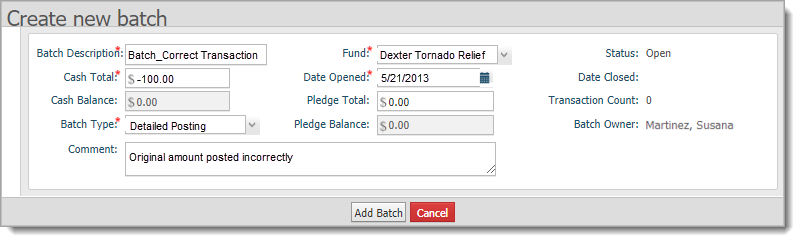
The Create new batch window is displayed. The Fund field defaults to the last fund selected. The Date Opened field defaults to today's date.
 An asterisk (*) indicates a required field. See
Batch_Details for descriptions of the fields.
An asterisk (*) indicates a required field. See
Batch_Details for descriptions of the fields.
Do the following:
In the Batch Description field, type a descriptive name for the batch. For example, "Batch_Correct Transaction".
In the Cash Total field, type the negative payment amount to credit the original amount posted.
For example, if the original amount entered in error was $100.00, type -100.00.
Note that under certain
circumstances, you can enter $0.00 in the Cash
Total field.
In the Fund list, select the name of the fund that the original payment was posted to.
In the Date Opened field, select the batch open (batch creation) date. Today's date is displayed as the default.
In the Batch Type field, select the Detailed Posting option.
(optional) Type a comment to explain the transaction. It is helpful to type something to jog your memory, for example, "Original amount posted incorrectly."
Following is an example of the information in the setup for batch created to offset an amount of $100.00 that was entered incorrectly. Note the negative dollar amount in the Cash Total field:
 .
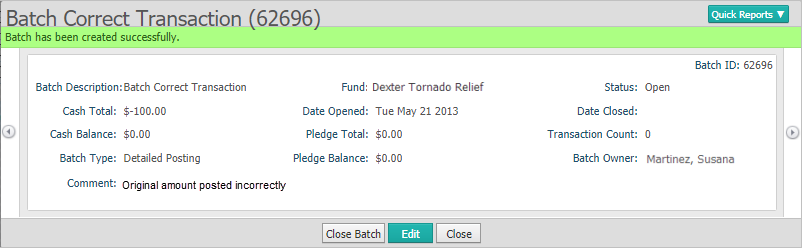
.A confirmation window is displayed to let you know that the batch was created and to let you review the details of the batch. Note the negative amount is shown in the Cash Total field:
 to exit the window.
The batch is added to the Batch Management page. Note that the Cash column displays the reversal amount in parentheses (to indicate that it is negative).
 ,
and make the necessary changes. Click
,
and make the necessary changes. Click  , and then
click to exit the window. The batch is added to
the Batch
Management page. Note that the Cash
column displays the reversal amount in parentheses (to indicate that
it is negative).
, and then
click to exit the window. The batch is added to
the Batch
Management page. Note that the Cash
column displays the reversal amount in parentheses (to indicate that
it is negative).In
supported browsers, you can use the Tab
key or the Enter key to advance
the cursor from one entry field to the next.
 . Select the Detailed
Posting option to display the Detailed
Posting page.
. Select the Detailed
Posting option to display the Detailed
Posting page.The cursor is positioned in the Env # field in the Posting section.
Note that the settings in
the Batch Information, Posting
Filters, Default Posting Data,
and Posting Options fields all default
to the last selections you made for these fields. You may need to go back
to change these selections for this transaction.

In the Posting Filters section:
In the Family Registration Status list, select Both.
In the Family Group list, select All Groups.
In the Default Posting Data section:
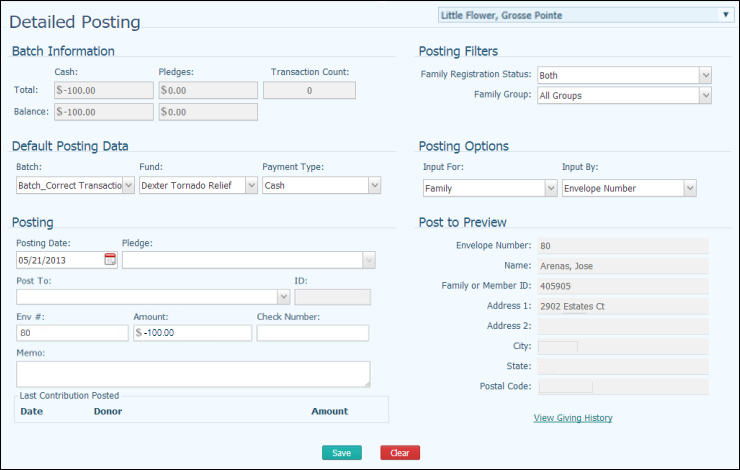
In the Batch list, type the first few letters of the name of the batch containing the reversal amount (the one you created earlier in Step 1). Then, select the batch from the list.
The Batch Information section updates to show you the details of the batch you selected.
In the Fund list, select the fund the original contribution was made to.
In the Payment Type list, select the payment method used for the original transaction.
In the Posting Options section, select whether you are posting the payment reversal to a family or member. Then, indicate how you want to search for the donor (for example, by name or by envelope number).
You are now ready to post the payment reversal.
In the Posting section, complete the following::
In the Posting Date field, select the date of the original posting.
In the Post To section, type the Input By value in the Post To field.
 This
value is associated with the option you selected for Input
By (in the Posting Options
section). For example, if you chose to input by envelope number, type
the member's envelope number in this field. Alternatively, if you selected
to input by the member's last name, type the first letter or two of the
member's last name.
This
value is associated with the option you selected for Input
By (in the Posting Options
section). For example, if you chose to input by envelope number, type
the member's envelope number in this field. Alternatively, if you selected
to input by the member's last name, type the first letter or two of the
member's last name.
Then, select the donor from the displayed list.
The cursor automatically advances to the Amount field. Type the dollar amount of the adjustment in the Amount field. For example, $-100.00.
In the Check Number field, record the check number if the original payment was made by check.
For thorough record keeping, in the Memo section, record the reason for the transaction. For example, "Original contribution amount incorrect".
The following illustration shows you an example of a posting to reverse a contribution amount of $100.00 that was posted incorrectly:
Click  to post the transaction
to reverse the original payment.
to post the transaction
to reverse the original payment.
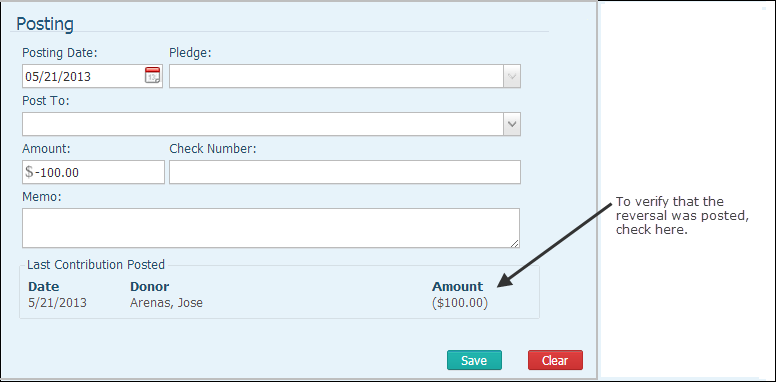
The Last Contribution Posted section at the bottom of the window updates to show that the reversal amount was posted.
For example:
Create a new batch that contains the correct payment amount. For instructions, see How to Create a Batch for Contributions.
Post the batch containing the correct payment amount. For instructions, see Posting_Contributions_to_a_Batch.
After the correct posting is applied, close the batch. For instructions, see How to Close a Batch.
About the Batch Management Page
How to Post Contributions by Batch